Step #1
On the computer with a registered copy of SuperEasyStats already installed, click the “About” button on the SuperEasyStats ribbon menu in Excel.

Step #2
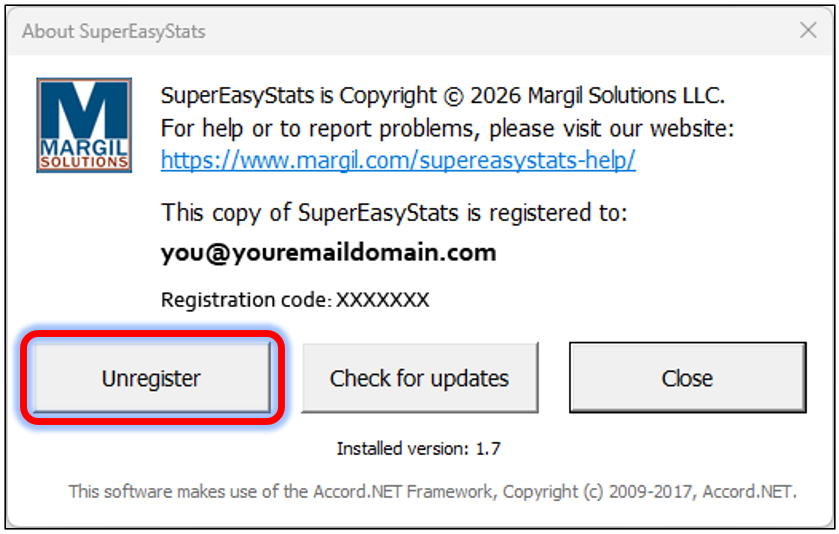
Click the “Unregister” button in the About dialog.
Step #3
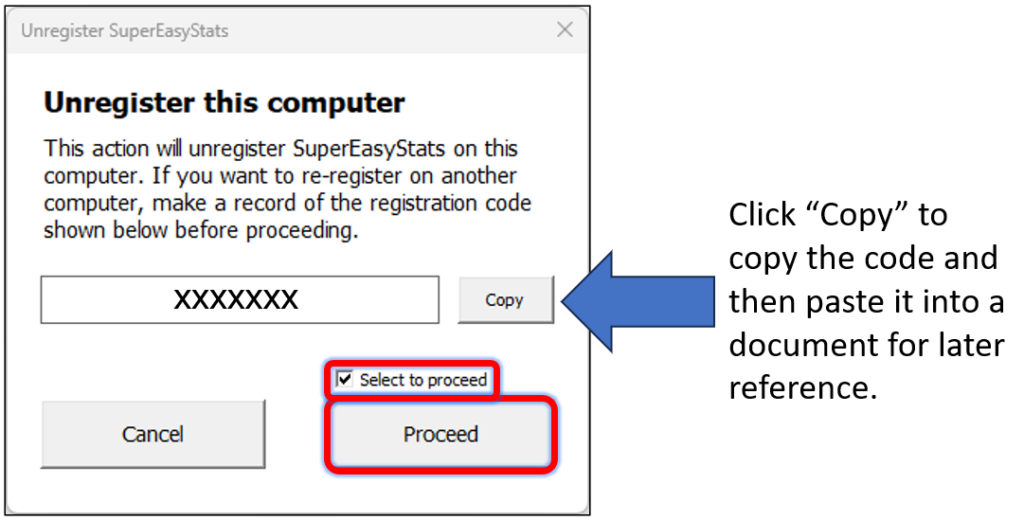
In the next dialog, copy the registration code and paste it into a document so you can refer to it later, then click the “Select to proceed” checkbox, and click the “Proceed” button.
Step #4
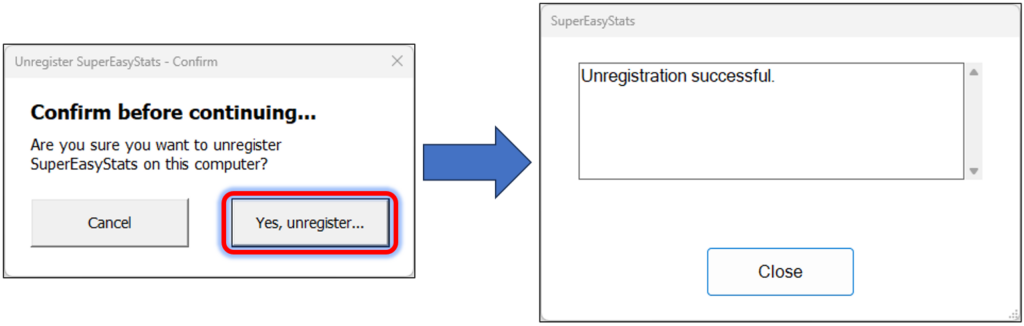
In the confirm dialog, click the “Yes, unregister…” button. You should then see the “Unregister successful” message. Now go to the new computer for Step 5.
Step #5
On the new computer, install the latest version of SuperEasyStats.
Step #6
After installation, make sure the SuperEasyStats ribbon appears in Excel while signed in to the user account, not the administrative account used for installation. If you don’t see the SuperEasyStats on the menu ribbon in Excel, follow these steps.
Step #7
On the new computer, while signed in to the user account, click the “About” button on the SuperEasyStats ribbon in Excel.
Step #8
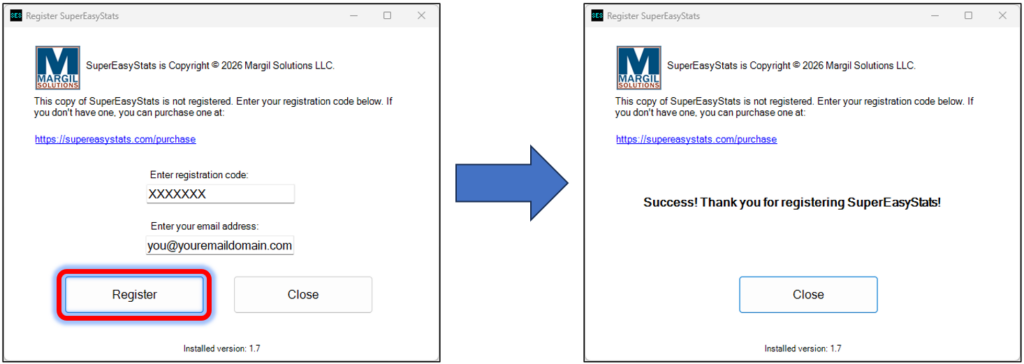
In the “Register SuperEasyStats” dialog, enter the registration code you copied from the original computer, then enter the email address of the new user and click “Register”.